CCSwitch
Install and configure CCSwitch to manage Codex, Claude Code, and Claude Desktop providers.
Follow the Windows or macOS steps for your system.
Windows
1. Install
Download the Windows installer from CCSwitch, run it, follow the installation prompts, and open CCSwitch.
2. Configure
Prepare an API Key. Select the client in CCSwitch and fill in its settings below.
Codex
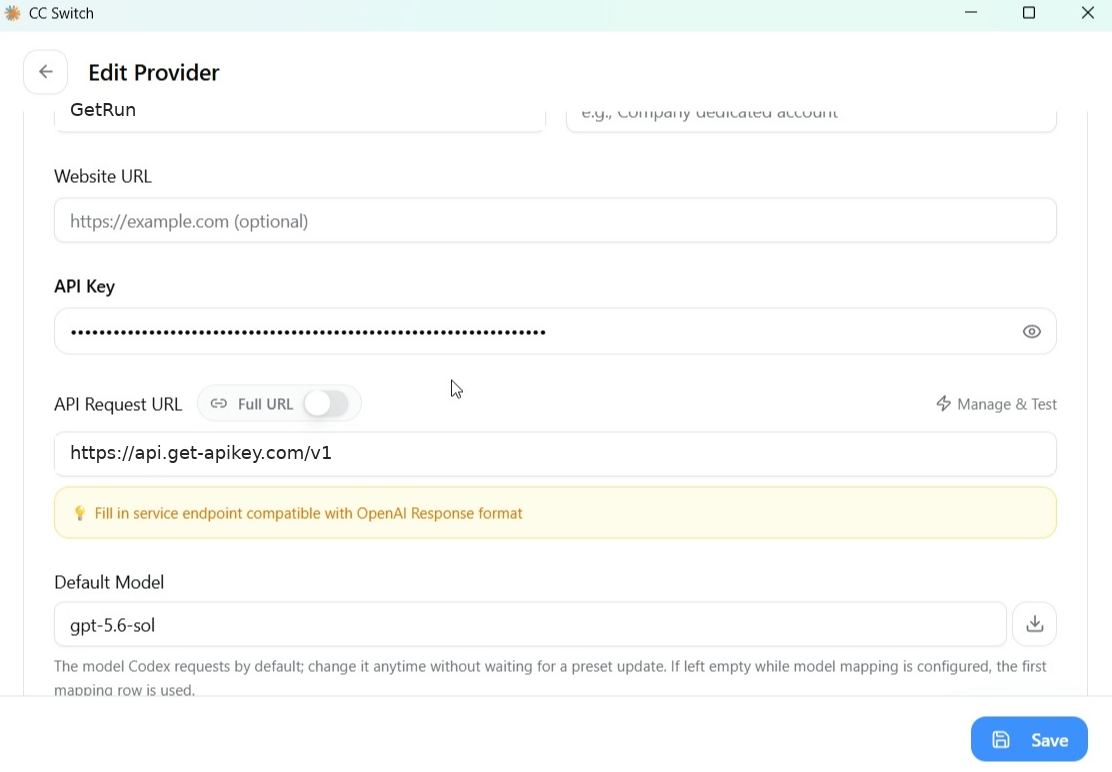
- Select Codex in Provider Management and add or edit a connection.
- Set Display name to
Get-Codexand Provider ID toget-codex. - Enter
https://api.get-apikey.com/v1as the API Request URL and your Key as the API Key. - Set Model to
gpt-5.5, Reasoning effort tohigh, and Wire API toresponses. - Save and select Enable.
Claude Code
- Select Claude in Provider Management and add or edit a connection.
- Set Display name to
GetRun. - Set API Endpoint to
https://api.get-apikey.comwithout/v1, then enter your API Key. - Save and select Enable.
Claude Desktop
- Select Claude Desktop in the app sidebar, add a custom provider, and name it
GetRun. - Enter
https://api.get-apikey.comas API Endpoint, then enter your API Key. - Set Connection mode to Model mapping and Upstream format to Anthropic Messages (native).
- Start with
glm-5.3as the Upstream model for Sonnet, Opus, Haiku, and Fable when shown. Turn 1M off. - Save and click Switch on the provider card. Keep CC Switch running, confirm the routing service is running, then fully quit and reopen Claude Desktop.
See the Claude Desktop guide for illustrations and the manual alternative. Select the Claude Desktop panel, rather than the Claude entry used for Claude Code.
3. Use
Confirm that the connection is enabled, fully quit Codex, Claude Code, or Claude Desktop, and reopen it. Start a session, check the model, and send Reply only OK. Once you receive a reply, continue in that client.
macOS
1. Install
Download the package for your Mac from CCSwitch, follow its installation steps to add it to Applications, and open CCSwitch.
2. Configure
Prepare an API Key. Select the client in CCSwitch and fill in its settings below.
Codex
- Select Codex in Provider Management and add or edit a connection.
- Set Display name to
Get-Codexand Provider ID toget-codex. - Enter
https://api.get-apikey.com/v1as the API Request URL and your Key as the API Key. - Set Model to
gpt-5.5, Reasoning effort tohigh, and Wire API toresponses. - Save and select Enable.
Claude Code
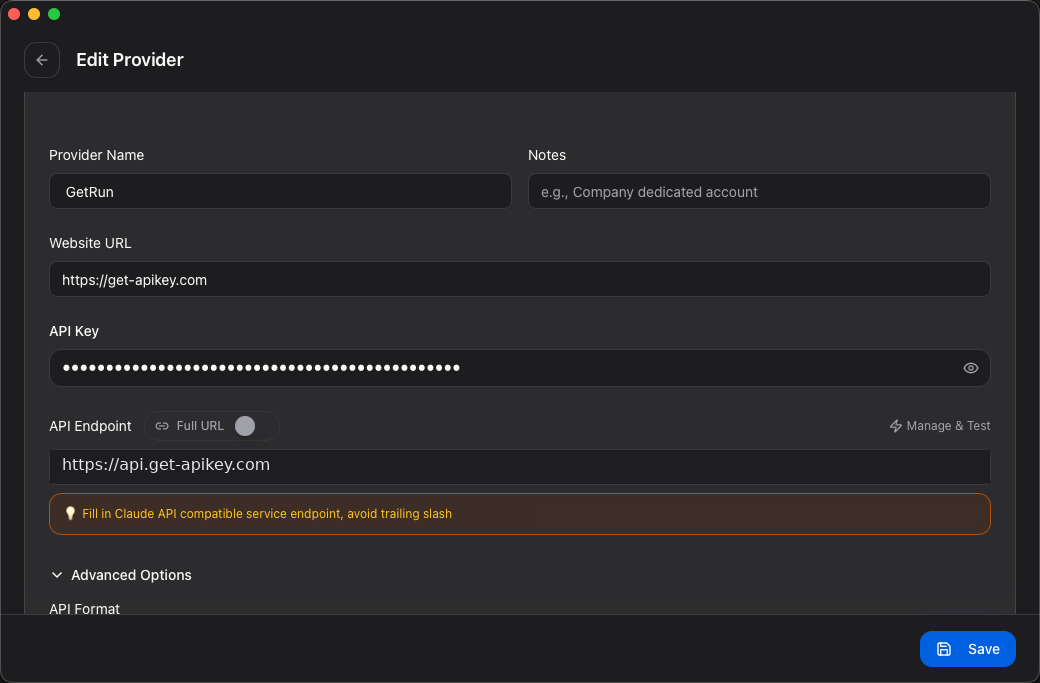
- Select Claude in Provider Management and add or edit a connection.
- Set Display name to
GetRun. - Set API Endpoint to
https://api.get-apikey.comwithout/v1, then enter your API Key. - Save and select Enable.
Claude Desktop
- Select Claude Desktop in the app sidebar, add a custom provider, and name it
GetRun. - Enter
https://api.get-apikey.comas API Endpoint, then enter your API Key. - Set Connection mode to Model mapping and Upstream format to Anthropic Messages (native).
- Start with
glm-5.3as the Upstream model for Sonnet, Opus, Haiku, and Fable when shown. Turn 1M off. - Save and click Switch on the provider card. Keep CC Switch running, confirm the routing service is running, then fully quit and reopen Claude Desktop.
See the Claude Desktop guide for illustrations and the manual alternative. Select the Claude Desktop panel, rather than the Claude entry used for Claude Code.
3. Use
Confirm that the connection is enabled, fully quit Codex, Claude Code, or Claude Desktop, and reopen it. Start a session, check the model, and send Reply only OK. Once you receive a reply, continue in that client.
See Codex configuration fields for field descriptions.
Generate images in Codex
Follow Codex (Image Generation) to install the GetRun skill. Normal switching can reuse the active GetRun configuration. For local proxy takeover, use an independent image configuration to connect directly to GetRun while keeping your conversation route.