Claude Desktop
Use CC Switch to manage providers and model mappings, or configure an API inside Claude Desktop.
Claude Desktop can connect to an API through third-party inference. Let CC Switch manage the settings, or enter them in the client yourself.
Choose a setup method
| Method | When to use it | Keep running |
|---|---|---|
| Use CC Switch | GLM, Kimi, DeepSeek, or other models that need mapping; centralized provider management | Claude Desktop and CC Switch |
| Configure the client manually | Your API accepts model IDs that Claude Desktop recognizes and can call | Claude Desktop |
For GetRun models such as glm-5.3, CC Switch is easier. CC Switch maps the desktop model roles to real upstream models. Manual configuration is for models that can connect directly. Choose one method; you do not need to configure both.
Install and prepare
- Install Claude Desktop from the official download page. On Windows, choose the installer for your architecture. On macOS, open the
.dmgand drag Claude into Applications. See the official installation guide for Cowork's additional requirements. - Prepare an API key in the GetRun console, and check the exact model ID in the model catalog.
- Choose a method below. The single-machine third-party inference setup does not require signing in to an Anthropic account first.
Method 1: Use CC Switch
These instructions cover CC Switch 4.x, with screenshots from v4.0.26 on macOS. Windows users can fill in the same fields; menu locations may vary by version. CC Switch writes Claude Desktop's connection configuration automatically, so you do not need to enter its local gateway URL or credentials in the client's developer settings.
1. Install and select Claude Desktop
Download the installer for your system from the official CC Switch releases. Open the app and select Claude Desktop in the left sidebar. This is separate from the Claude Code entry.
If the entry is missing, open Apps in the sidebar and enable Claude Desktop in the list of apps shown in the sidebar.
2. Add GetRun as a provider
Click Add provider, choose Custom configuration, and enter:
| Field | Value |
|---|---|
| Name | GetRun |
| API Key | Your GetRun API key |
| API Endpoint | https://api.get-apikey.com, without /v1 |
| Model configuration → Connection mode | Model mapping |
| Upstream format | Anthropic Messages (native) |
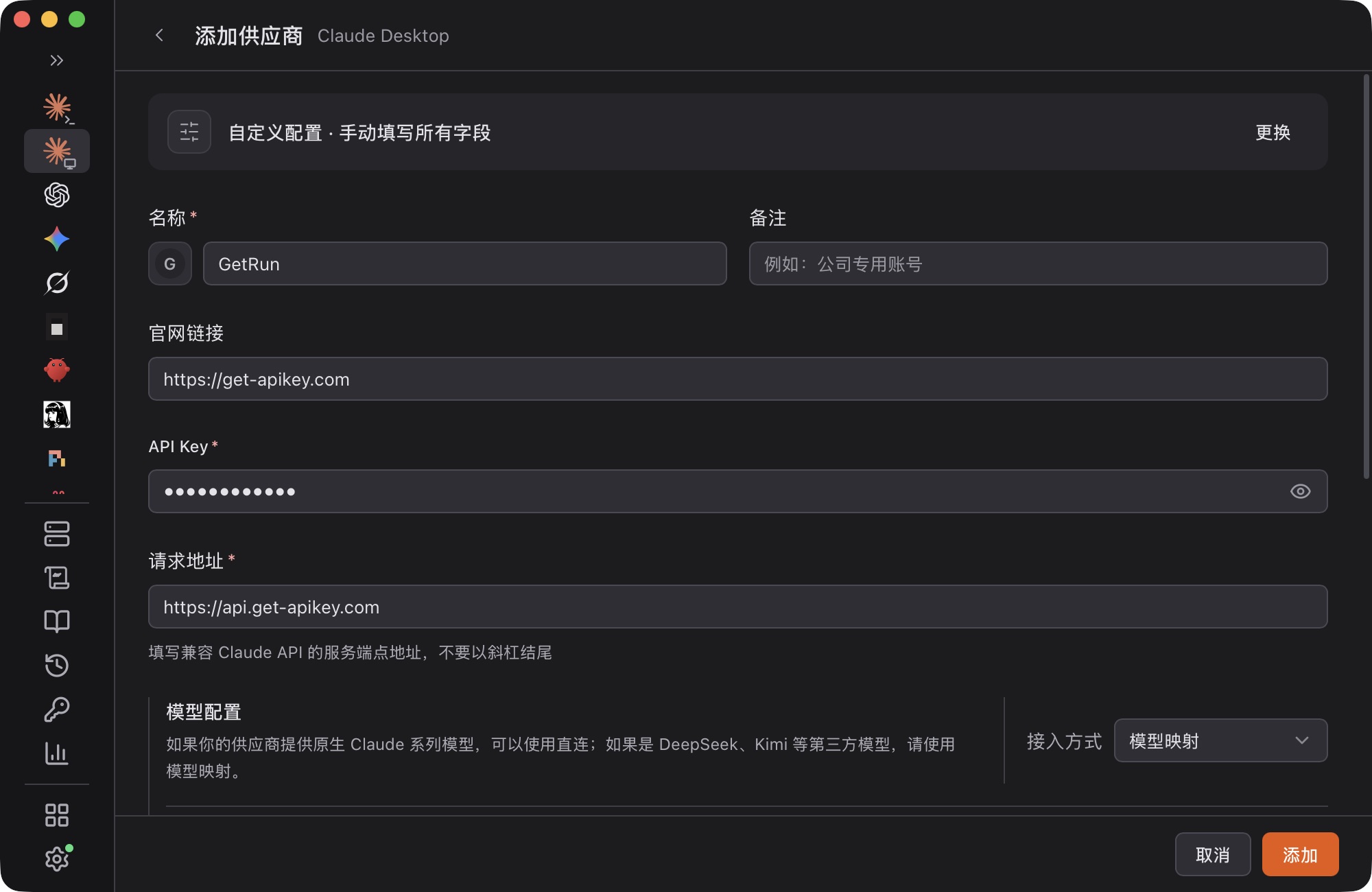
Actual CC Switch v4.0.26 on macOS, shown in Chinese. The masked key is a placeholder; enter your own key.
Older versions may show a Needs model mapping switch instead. Turn it on.
If GetRun is already configured in CC Switch's Claude Code panel, you can use Import existing providers from Claude Code first. Review the mappings below after importing, and switch to the imported provider separately in the Claude Desktop panel.
3. Fill in model mappings
Start with glm-5.3 for every role. After the main conversation and subagents work, you can assign different models. Keep the Model role values generated by CC Switch, and put the catalog's model ID in Upstream model.
| Model role | Example display name | Upstream model | Supports 1M |
|---|---|---|---|
| Sonnet | GLM-5.3 · Sonnet | glm-5.3 | Off |
| Opus | GLM-5.3 · Opus | glm-5.3 | Off |
| Fable, if shown | GLM-5.3 · Fable | glm-5.3 | Off |
| Haiku | GLM-5.3 · Haiku | glm-5.3 | Off |
A role is a desktop routing entry; it does not turn the upstream model into Claude. All four entries above call glm-5.3. Haiku and other auxiliary roles also need a working model, or the main conversation can succeed while an Explore subagent reports a missing model.
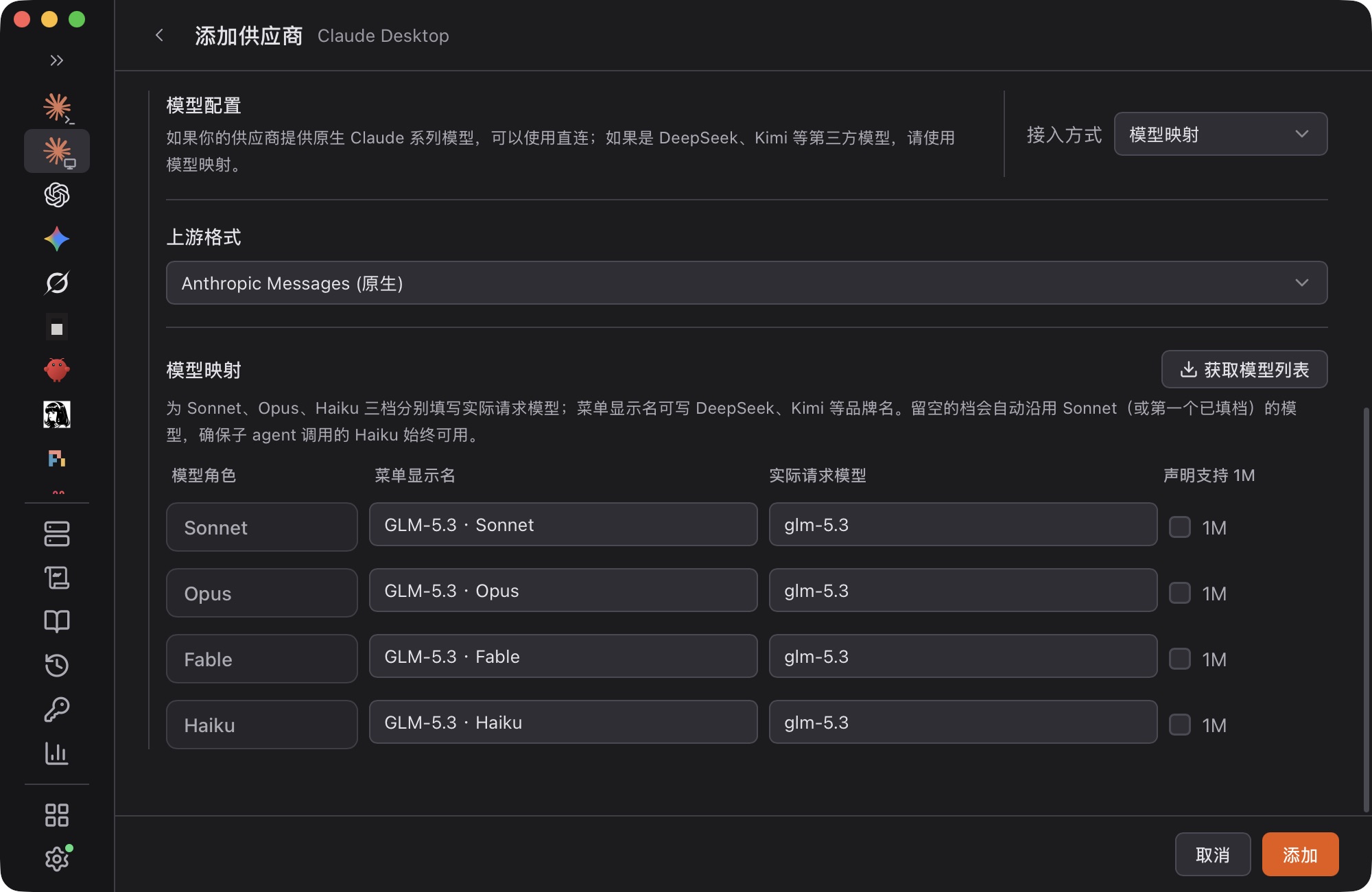
Actual CC Switch v4.0.26 on macOS, shown in Chinese. All four roles use glm-5.3, with 1M off.
4. Switch and restart Claude Desktop
- Save the provider, click Switch on the GetRun card, and confirm it is marked as in use.
- Check the connection bar at the top of the panel: the routing service for model mapping should be running. Version 4 starts it automatically. If startup fails, use the retry or port-change action shown there.
- Fully quit and reopen Claude Desktop. On Windows, quit from the tray or application menu. On macOS, use
Command + Q; closing the window is not enough. - Select your configured model in Claude Desktop and verify the configuration with a conversation and a subagent task.
Keep CC Switch running when using model mapping. Its local gateway forwards requests and translates desktop role IDs to real model IDs such as glm-5.3.
The default local address is http://127.0.0.1:15721/claude-desktop; use the configuration generated by your CC Switch instance. A local address in Claude Desktop is expected. Your GetRun endpoint and key belong in CC Switch's provider settings, while CC Switch manages the local credentials. Do not copy fixed ports or keys from older tutorials.
Method 2: Configure the client manually
The screenshots below show Claude Desktop 5.1231.0 on macOS. They illustrate the configuration fields using a placeholder key; no live model response was verified. Windows users should follow the menu path below.
1. Open third-party inference settings
- Windows: On the Claude Desktop sign-in screen, open the ☰ application menu at the top left and select Help → Troubleshooting → Enable Developer Mode.
- macOS: From the menu bar at the top of the screen, select Help → Troubleshooting → Enable Developer Mode.
Click Enable in the confirmation dialog. The app restarts. Then open Developer → Configure Third-Party Inference… to reach the window below. In a Chinese-language menu, the path is 开发者 → 配置第三方推理…; the configuration fields remain in English. If you have several saved configurations, select the one you want to edit from the top-right picker first.
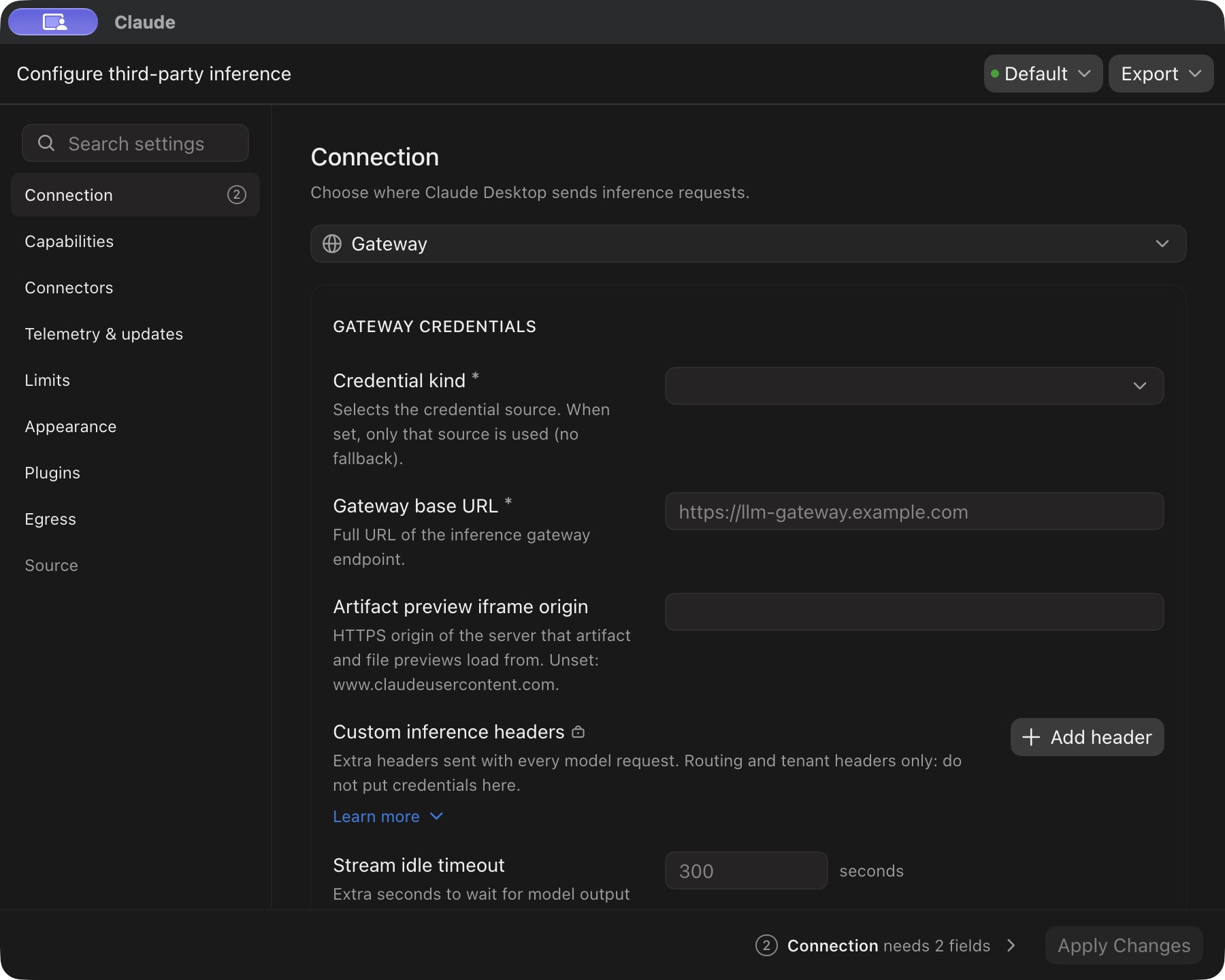
The actual window opened from Configure Third-Party Inference. Open the image to enlarge it.
2. Enter the API endpoint and key
Select Connection in the sidebar and enter these values. Do not append /v1 to the URL.
| Field | Value |
|---|---|
| Inference provider | Gateway |
| Gateway base URL | https://api.get-apikey.com |
| Credential kind | Static API key |
| Gateway API key | Your GetRun API key |
| Gateway auth scheme | bearer |
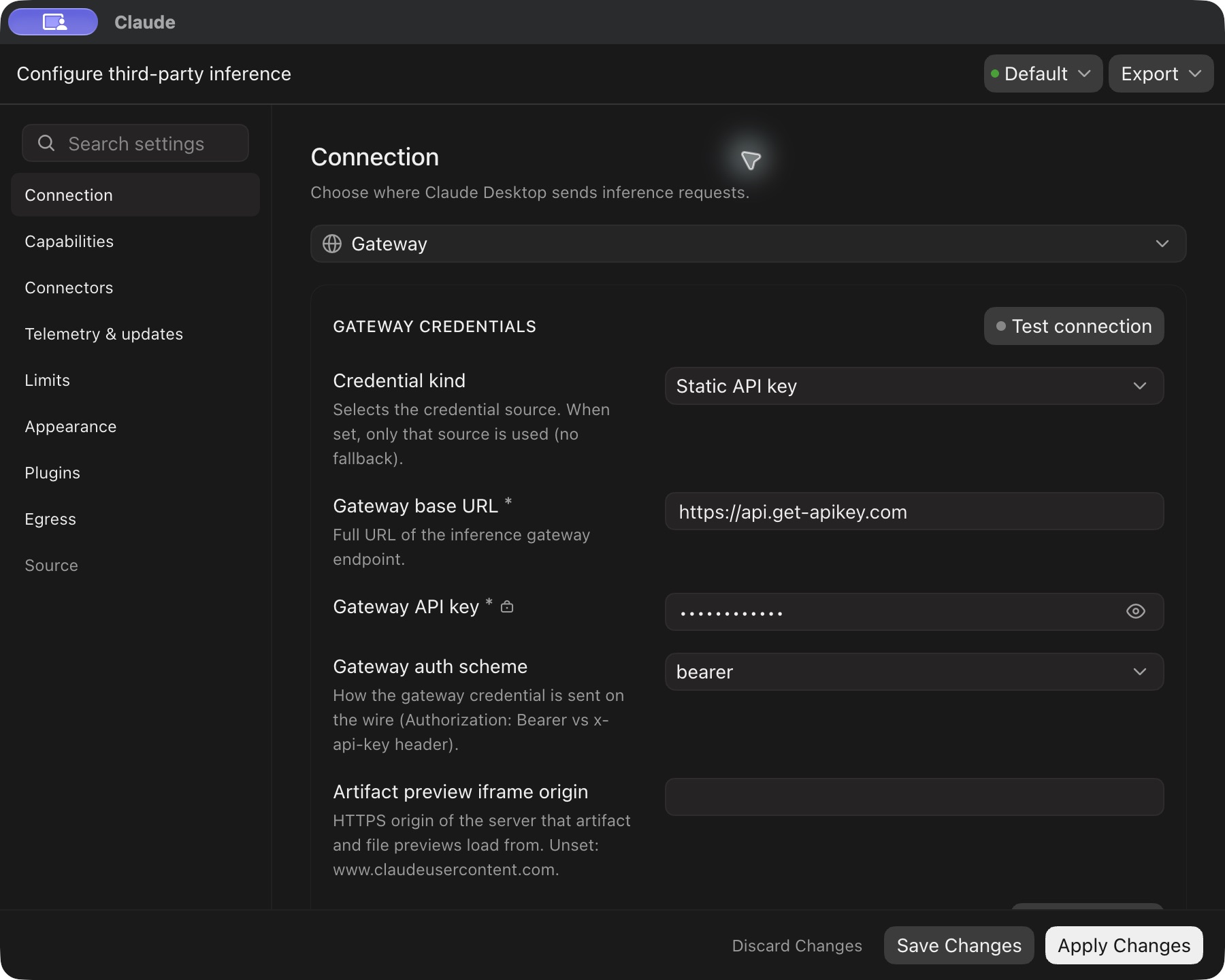
Actual local configuration form with a masked placeholder key. Test connection has not been run; enter your own key.
3. Configure models
Scroll down to Models under Connection. Leave Model discovery on and click Test model discovery to check discovery. To specify a model manually, click Add model under Model list (inferenceModels), then enter the full ID accepted by the API in Model ID. Display name only changes the label in the picker and can be left blank. The first entry is the default model.
Both the client and the API must accept the model ID. In the local 5.1231.0 form, entering glm-5.3 directly produces an Anthropic model-name validation error and disables Save Changes and Apply Changes. This is local form validation; no API request was sent. Use method 1 for these models. Simply renaming the ID to claude-sonnet-* is insufficient; the server must also accept and route that ID correctly.
Keep Use 1M wherever it’s available and the model entry's Offer 1M-context variant off unless the actual model and API support them. These options do not expand the model's capacity, and appending [1m] to the model ID is not a substitute.
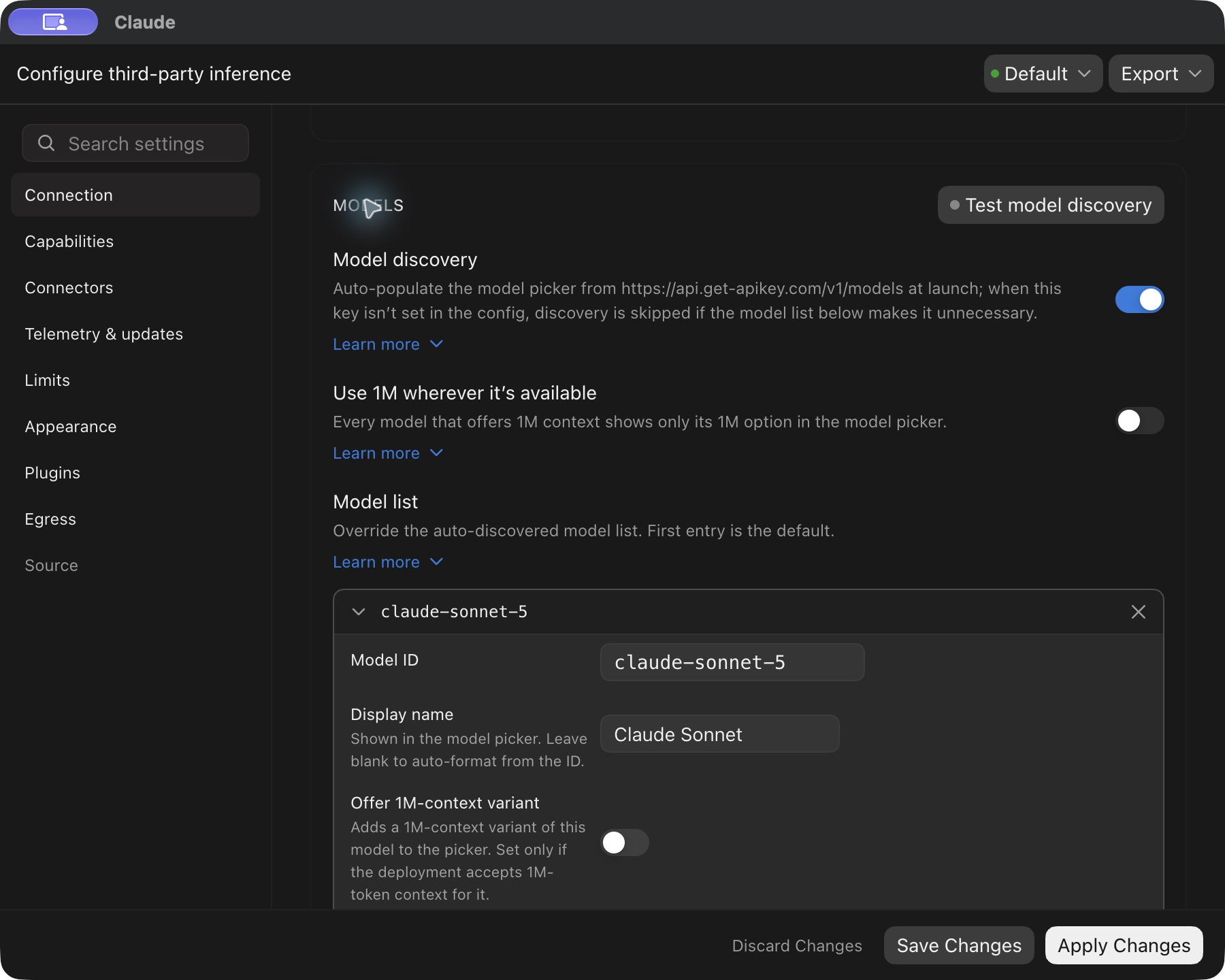
Actual model configuration form. claude-sonnet-5 illustrates the fields; it does not establish availability for your key. Check the GetRun catalog and verify with a real request.
4. Save and restart
Click Test connection. Once it passes, click Apply Changes, then Relaunch now when prompted. Save Changes saves your edits without applying them and restarting. Enter the third-party mode for that configuration after restarting, then verify the configuration with a conversation and a subagent task.
Claude Desktop connection settings are separate from the Claude Code CLI's ~/.claude/settings.json. CLI model environment variables do not replace desktop model configuration or mapping.
Verify the configuration
- Select Code in Claude Desktop and open a project directory that you allow it to read.
- Send
Reply only OK. After receiving a reply, check tool use as well. - Send
Use an Explore subagent to list the filenames in the current directory. Do not modify any files.Approve the necessary read-only operations when prompted. - If a subagent reports a missing Claude model role while using CC Switch, check that role's Upstream model mapping. Save, switch to the provider again, and restart the desktop app.
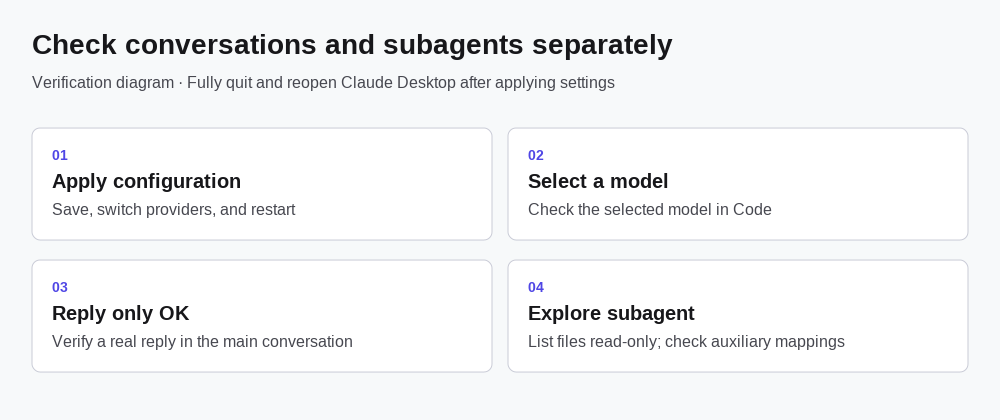
Check the main conversation and subagents separately so a working reply does not hide an unmapped role.
1M context and reasoning effort depend on the real model and API. Complete the checks with default settings before adjusting these options. Code, Chat, and Cowork can also differ; verify the surfaces you plan to use separately.
Troubleshooting
| Symptom | Next step |
|---|---|
| GLM, Kimi, or another model is missing after manual setup | Use CC Switch model mapping. A display label or CLI configuration alone does not provide forwarding or mapping. |
| Main conversation works, but an Explore subagent cannot find its model | Check Sonnet, Opus, Haiku, and Fable when shown. Configure auxiliary roles as well as the main conversation. |
| Developer menu is missing | Enable it again under Help → Troubleshooting → Enable Developer Mode. Contact your administrator if policy disables it or the configuration is read-only. |
| Claude Desktop is missing from CC Switch | Check the version and enable it under Apps. Do not configure the Claude Code “Claude” panel instead. |
| Desktop still uses the old provider after switching | Fully quit and reopen Claude Desktop, then start a new session. |
| Local gateway cannot be reached | Keep CC Switch running and check the routing status and port message in its connection bar. |
| 401 or authentication failure | For manual setup, check the Gateway key and Bearer scheme. For CC Switch, check the key saved in the GetRun provider. |
| Upstream reports an unknown model | Copy the exact ID from the GetRun catalog. In CC Switch, change Upstream model rather than Model role. |
| Errors involving 1M context or reasoning effort | Turn off the 1M declaration and restore default reasoning settings. Enable them only after confirming actual model support. |
Return to official sign-in
- CC Switch: Select Claude Desktop Official in the Claude Desktop panel, click Switch, then fully quit and reopen Claude Desktop.
- Manual setup: Return to the Claude Desktop sign-in screen and select the Anthropic sign-in option.
You do not need to delete .claude or the Claude Desktop configuration directories to switch modes; deleting them can remove local content.